Part IV. Trigger auto scale-out
Step 1. Run Apache Bench from traffic_gen VM
SSH to traffic_gen VM and run run_traffic.sh script passing Server IP as an argument:
./run_traffic.sh 10.1.52.101Log files are generated for each thread and are located in the same directory (ab[1-10].out)
Step 2. Watch BIG-IP and Nagios statistics, scaleout process in VNF manager
- Point Jumphost Browser to a slave VNF(FW) BIG-IP instance .40 IP address and login to BIG-IP TMUI
- Navigate to Statistics –> Analytics –> CPU
- Watch CPU graph as it crosses pre-defined 40% CPU threshold
- Open a new tab in the browser and point it to the public floating https://10.1.20.x/nagios IP address of Nagios VM. Login using Nagios credentials and navigate to
See Credentials
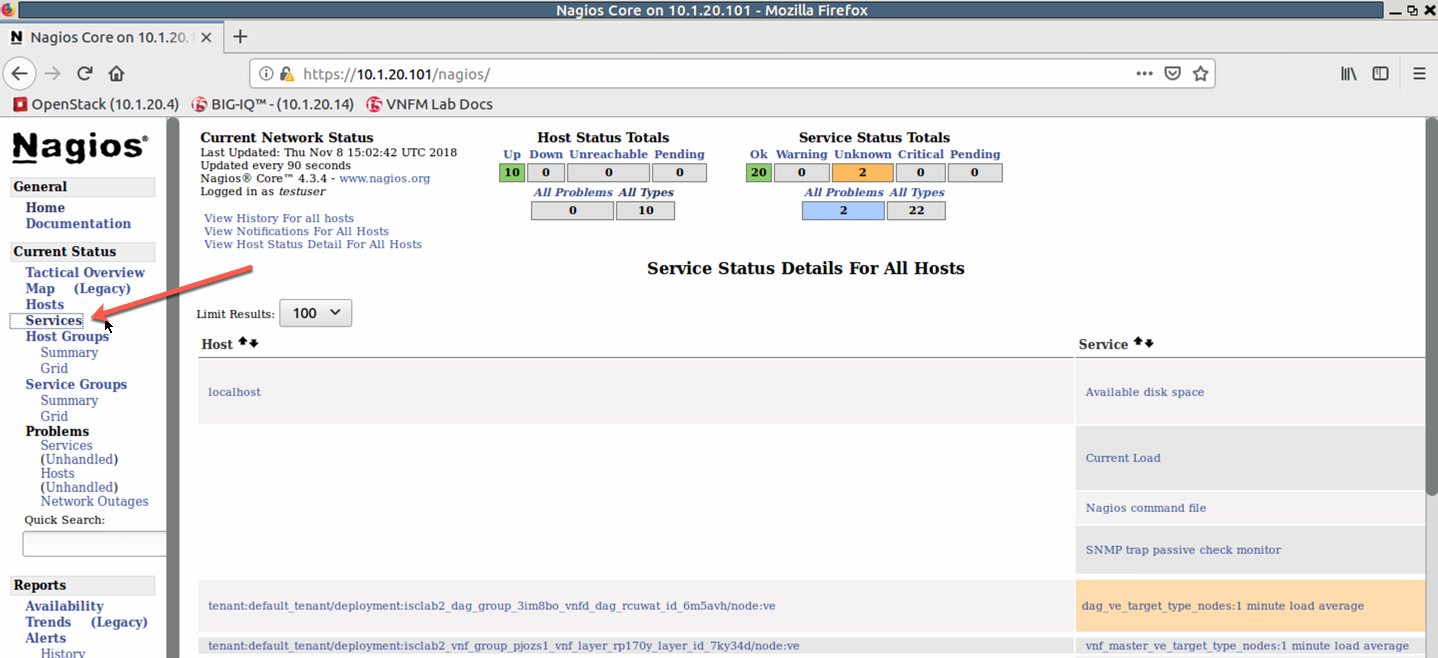
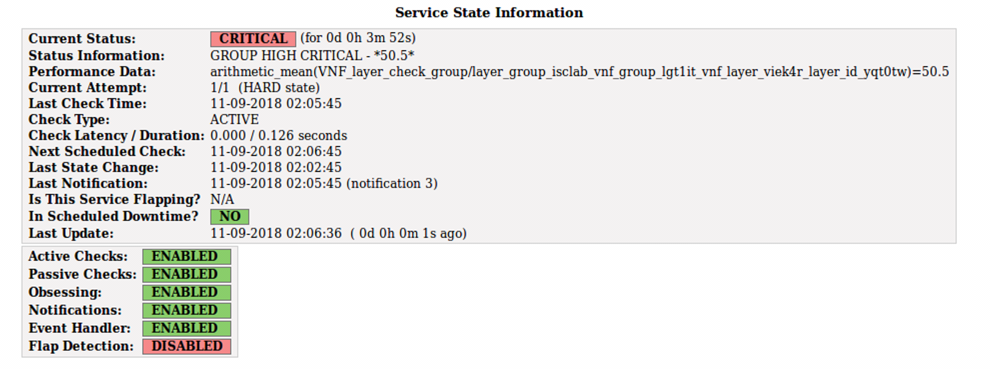
After 2-3 minutes Nagios will show a CRITICAL alarm when CPU utilization on VNF layer BIG-IPs reaches pre-defined threshold:

Clicking on the alarm brings up detailed state information
- Point your browser to the public floating 10.1.20.x IP address of VNF Manager VM
- Login to VNF manager UI and click on Deployments from the left-side menuIcon
- Watch as VNF manager performs auto scale-out of VNF(FW) instances:

Stop the traffic using the following script:
./stop_traffic.sh
What’s Next?