Part V. Initiate manual scale-out
Step 1. Execute Scale-out workflow
VNF Manager can scale-out/in both DAG and Firewall layers. THis lab focuses on manual scale-out procedure for scaling out DAG layer.
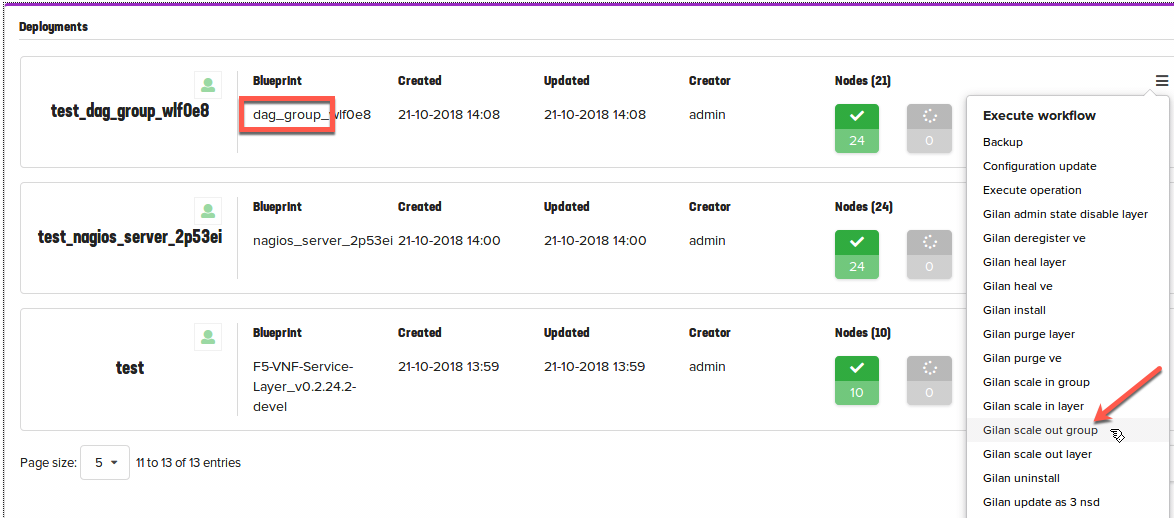
To manually scale-out DAG layer, select Deployments –> dag_group_xxx Blueprint
Expand  , click Gilan scale out group. Keep add_instances value of 1, and then click Execute.
Step 2. Modify openstack route
Note newly created DAG layer BIG-IP pgw_net
- Select Project –> Network –> Routers and click on router1
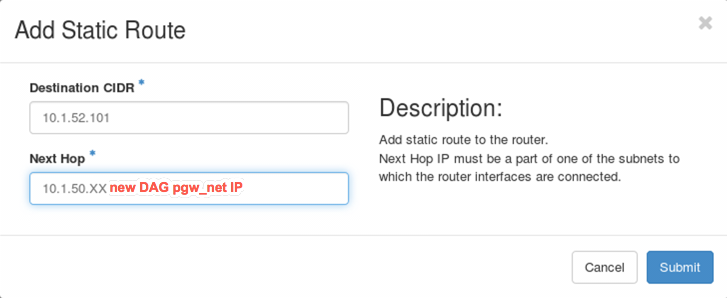
Open Static Routes tab and click on Delete Static Route to delete previously provisioned route. Click on Add Static Route Add the following route: 10.1.52.101/32 Next Hop <DAG layer BIG-IP pgw_net IP>
Step 3. Run test traffic
- Run test traffic through new DAG instance
Note
This test is the same as in Part III Step 3 of this lab guide
Point Jumphost Browser to new DAG BIG-IP instance .40 IP address and login to BIG-IP TMUI
Navigate to Local Traffic –> Virtual Servers, then select f5dag partition from Partition: menu
Select firewall_fastL4 VS and click on Statistics menu
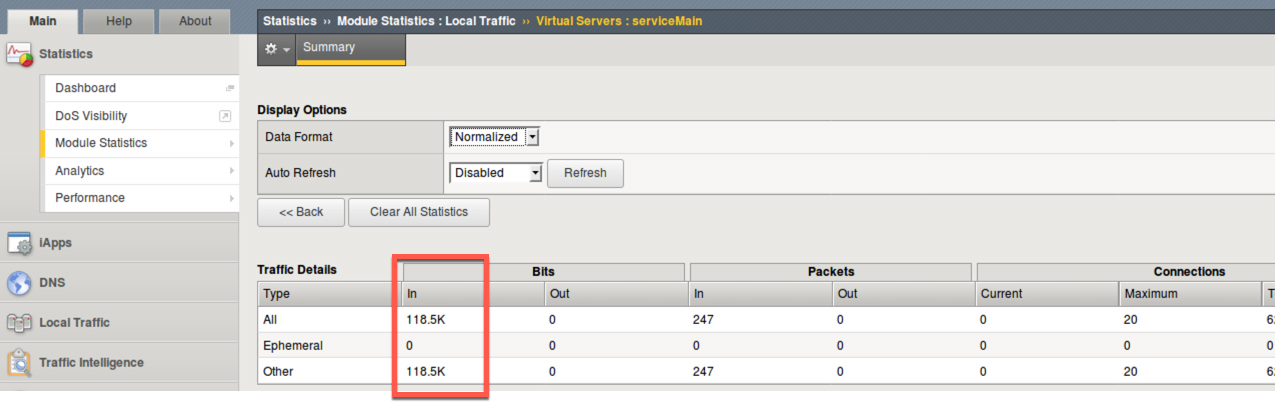
Traffic statistics will be visible in Traffic Details and Connections parts of Statistics screen. Note that due to the asymmetric routing, return traffic is NOT passing through the same DAG instance
Note
Other methods may be used to validate that the traffic is flowing through new DAG instances including running a tcpdump
For more information about Scale Workflow see: The Scale Workflow
What’s Next?